
Owner, Administrator, Producer, Crew, Viewer
Overture has one org-level role (Owner) and four event-level roles (Administrator, Producer, Crew, Viewer). Here's exactly what each can do.
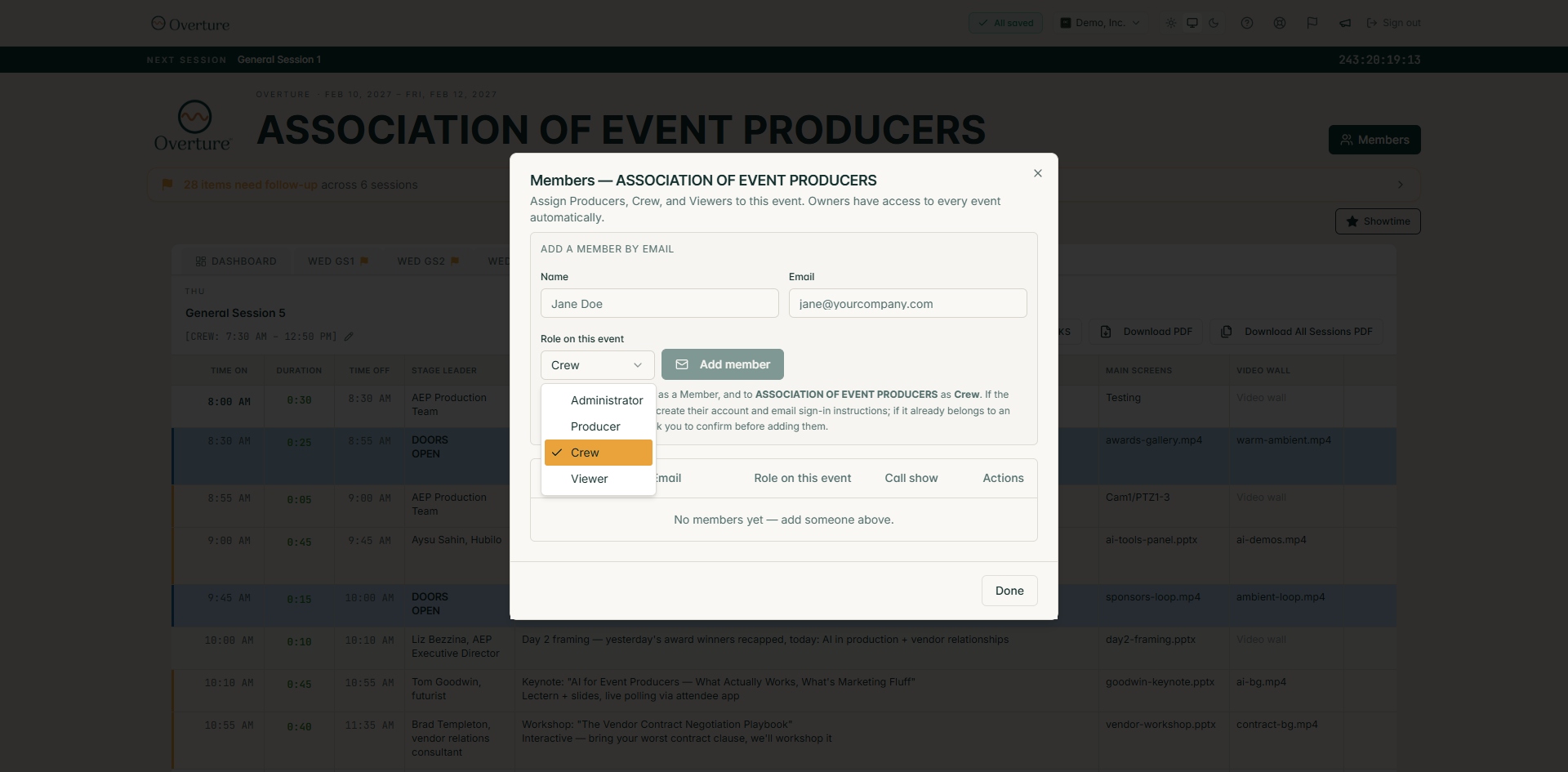
Overture has two layers of roles. Owner is an org-level role — it belongs to whoever signed up and pays for your company's Overture subscription. Everyone else gets an event-level role assigned through the Members dialog: Administrator, Producer, Crew, or Viewer. Event-level roles are per-event, so the same person can be a Producer on one event and a Viewer on another. The Owner automatically has full access to every event in the org without being added.
Owner (org-level)
The Owner is the person who created the organization and pays the Overture subscription. There's typically one Owner per company. The Owner is the only role that can:
- See and edit the Settings gear and the Billing card
- Update the payment method, view invoices, change plan, cancel
- Change the organization logo and brand colors
- Delete the organization
- Invite or remove people across the entire org (not just one event)
The Owner also has full Administrator powers on every event in the org without being added to it. Owners do not appear in the per-event Members dialog — that dialog only lists the four event-level roles.
The four event-level roles at a glance
| Role | Edit run of show | Invite / remove members | Call the show (Showtime) |
|---|---|---|---|
| Administrator | Yes | Yes | Always |
| Producer | Yes | No | Always |
| Crew | Row content only | No | Only if the Owner or an Administrator enables Call show |
| Viewer | No (read-only) | No | No |
Administrator (event-level)
Administrator is the highest role you can assign in the Members dialog. Administrators have full structural editing of the run of show, venue editing, session creation and deletion, row reordering, time editing — plus the ability to invite new members and remove existing ones on this event. Use Administrator for your right-hand person who runs Members on your behalf when you're not at the desk. Administrators do not see Billing or Settings — those stay with the Owner. The badge is deep amber-orange.
Producer
Producers are the people who actually build and edit the show. They can:
- Add, rename, delete, and reorder sessions
- Edit any cell in any row — times, stage leader, what is happening, main screens, video wall, notes
- Add, delete, and reorder rows
- Edit the venue (address, photos, parking, loading dock, power, notes, staff)
- Run the show live (Showtime — always on for Producers)
What they can't do: invite other people to the event, or remove members. Producer is the right role for show callers, technical directors, and ROS editors who don't need to manage who's on the team. The badge is amber on a forest-green text.
Crew
Crew is for content contributors who help finalize details but don't restructure the show. They can:
- Edit row content — what is happening, main screens, notes
- Mark rows complete during pre-show prep
- Add, view, and complete follow-ups
What they can't do: add or delete sessions or rows, change row times, reorder anything, edit the venue, invite or remove members. They also cannot call the show by default — but the Owner or an Administrator can flip the Call show toggle on for a specific crew member if needed (e.g., the ATEM operator who advances cues). Crew shows a neutral gray badge.
Viewer
Viewer is fully read-only. They can open the event, look at the run of show, see the venue details, see the team — and that's it. No edits, no exports of the printed packet (Viewers can't generate PDFs), no Showtime access. Viewer is for stakeholders who want visibility without the chance of accidentally changing something. Shows a muted gray badge.
How roles get assigned
When you invite someone via the Members dialog, you choose their event-level role from a dropdown (Administrator, Producer, Crew, or Viewer). Roles are per event — the same person can be a Producer on one event and a Viewer on another. Open the Members dialog from the Members button on the event header. To transfer org Ownership, contact support — it's not a self-serve action.
To change someone's role later, see How to change a member's role.
Why per-event and not per-account?
Most production companies have the same person playing different roles across events. Your senior producer Sarah might be a Producer on the big Camp Big West conference but only a Viewer on a small Rotary luncheon she's not staffing. Overture's per-event role model means you don't need to keep promoting and demoting accounts as your team shifts between gigs — set the right role once per event and forget it.