
How to start a session in Showtime
Click the gold ▶ Start session button to begin the live show. It stamps the start time, kicks off the master clock, and flips every connected viewer to the live cue list.
Starting a session in Showtime is one click — but it's an important click. It stamps the official "show start" time, begins the master clock, and is what every connected viewer sees as the moment the show went live.
The "Ready to start" screen
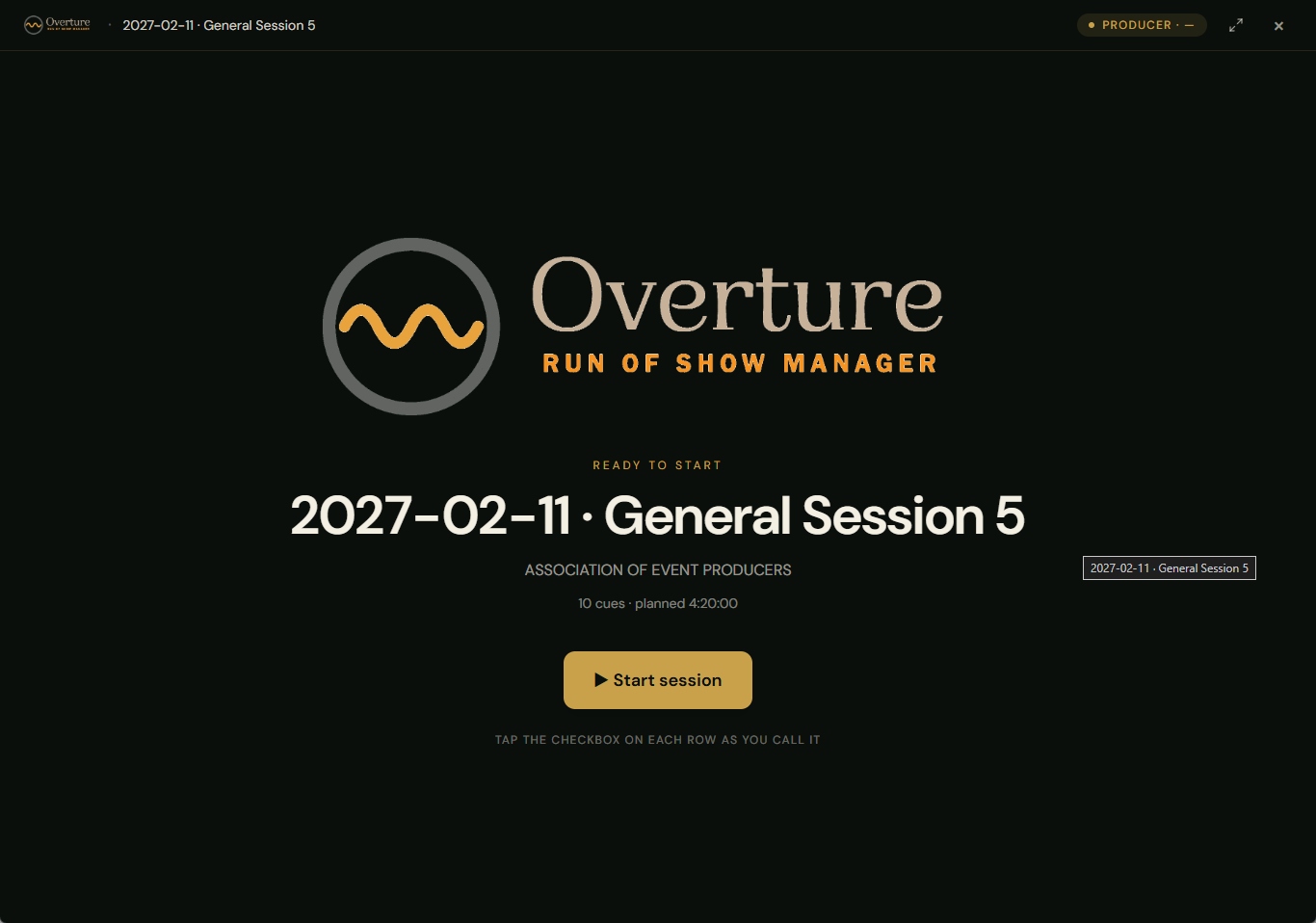
When you open Showtime on a session that hasn't started yet, you'll see:
- The large Overture lockup centered on the screen
- An amber-gold "Ready to start" label
- The session title in big white type
- The event name underneath
- A line that reads N cues · planned HH:MM:SS
- The big gold ▶ Start session button
Who can press Start
Only people with Call show permission see the Start button — Owners, Administrators, Producers, and any Crew member with the permission toggled on. Everyone else sees the headline "Waiting on the producer to start the session…" in its place. That way Viewers on a second monitor can sit on this screen and know that nothing has happened yet.
Steps
- Open the event and the right session.
- Click ★ Showtime to launch the controller.
- Confirm the session title and cue count look right — this is your last chance to bail out and edit.
- Click ▶ Start session.
- The screen flips to the live cue list (or BigClock, depending on your last preference). The first row is now highlighted as NOW with its timer running.
What happens behind the scenes
- The session's
startedAttimestamp is saved on the server. - The current cue is set to row 0 (the first row).
- The master clock starts ticking.
- Other connected viewers (Showtime windows on other devices, BigClock on a stage monitor) instantly switch from "Ready to start" to the live view.
If you started by accident
There's no "unstart" today — but you can effectively restart the session from the very beginning. Click the close-X in Showtime's top-right cluster, reopen Showtime, and look for the "Start this session over from the beginning" action; confirming clears every cue timing on the session and brings you back to the Ready to start screen. Use this rarely — it wipes the audit trail of what time each cue actually fired.
The "Tap the checkbox on each row" tip
Below the Start button, callers see a small uppercase line: "Tap the checkbox on each row as you call it". Once the show is running, the easiest way to advance cues is to click the checkbox at the left edge of the current NOW row — but the keyboard is faster. See Showtime keyboard shortcuts.